Knowledge Base · Email & Productivity

How to use SmarterMail for email, calendars, contacts and more.

Learn the essentials of SmarterMail, from signing in and sending messages to organizing your inbox, managing attachments, using calendars, and adjusting settings. Follow the steps below to get comfortable with your business email.

Beginner-friendly instructionsEmail and productivity toolsSecurity and troubleshooting tips
Step 1

Sign in to your SmarterMail account.

SmarterMail is accessed through a web browser. Your administrator or email provider should give you the correct webmail address and account credentials.

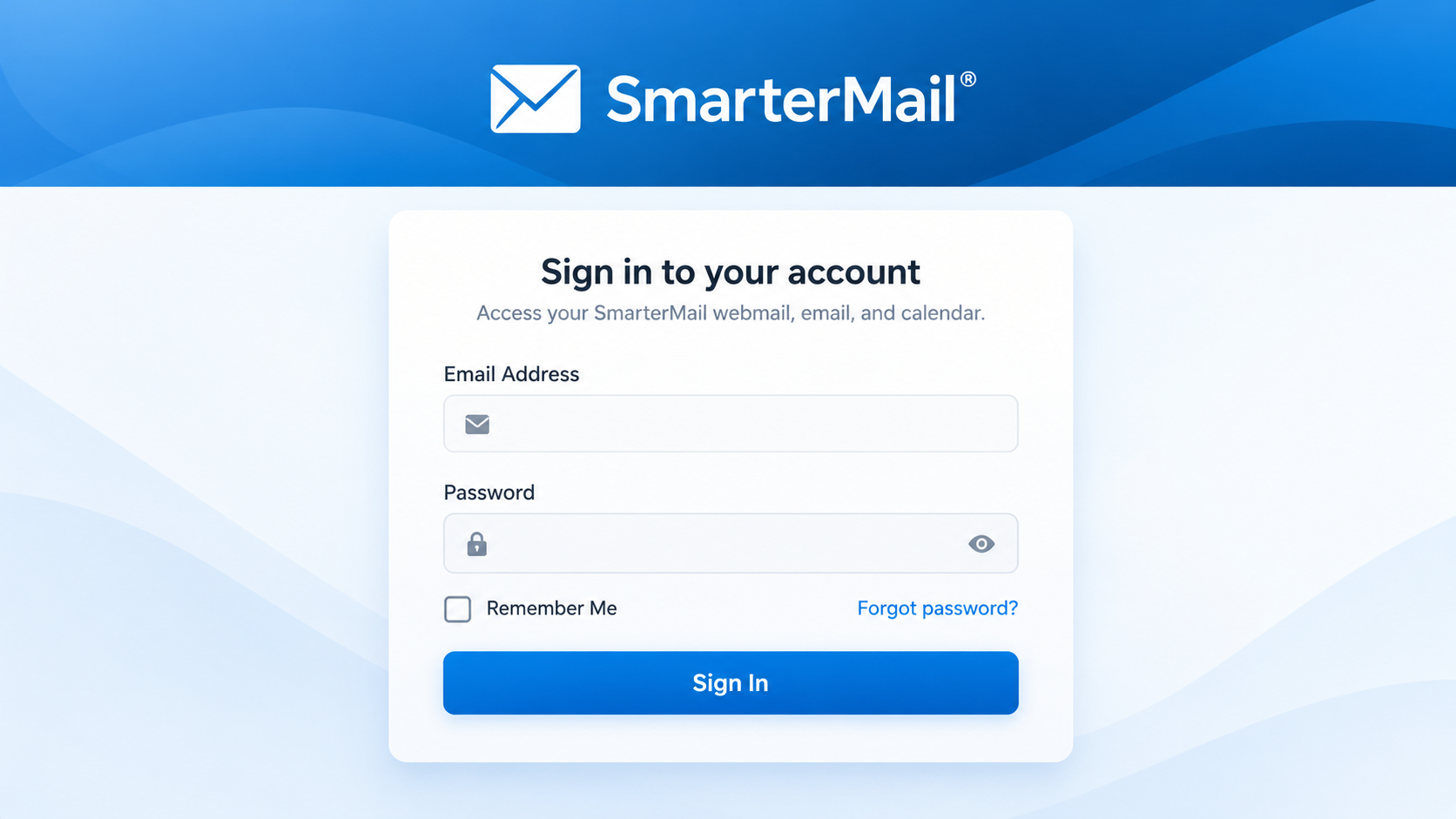
  1. Open the SmarterMail webmail address provided by your organization or hosting provider.
  2. Enter your full email address and password.
  3. Select Sign In. Depending on your organization's setup, you may be asked to complete an additional security step.
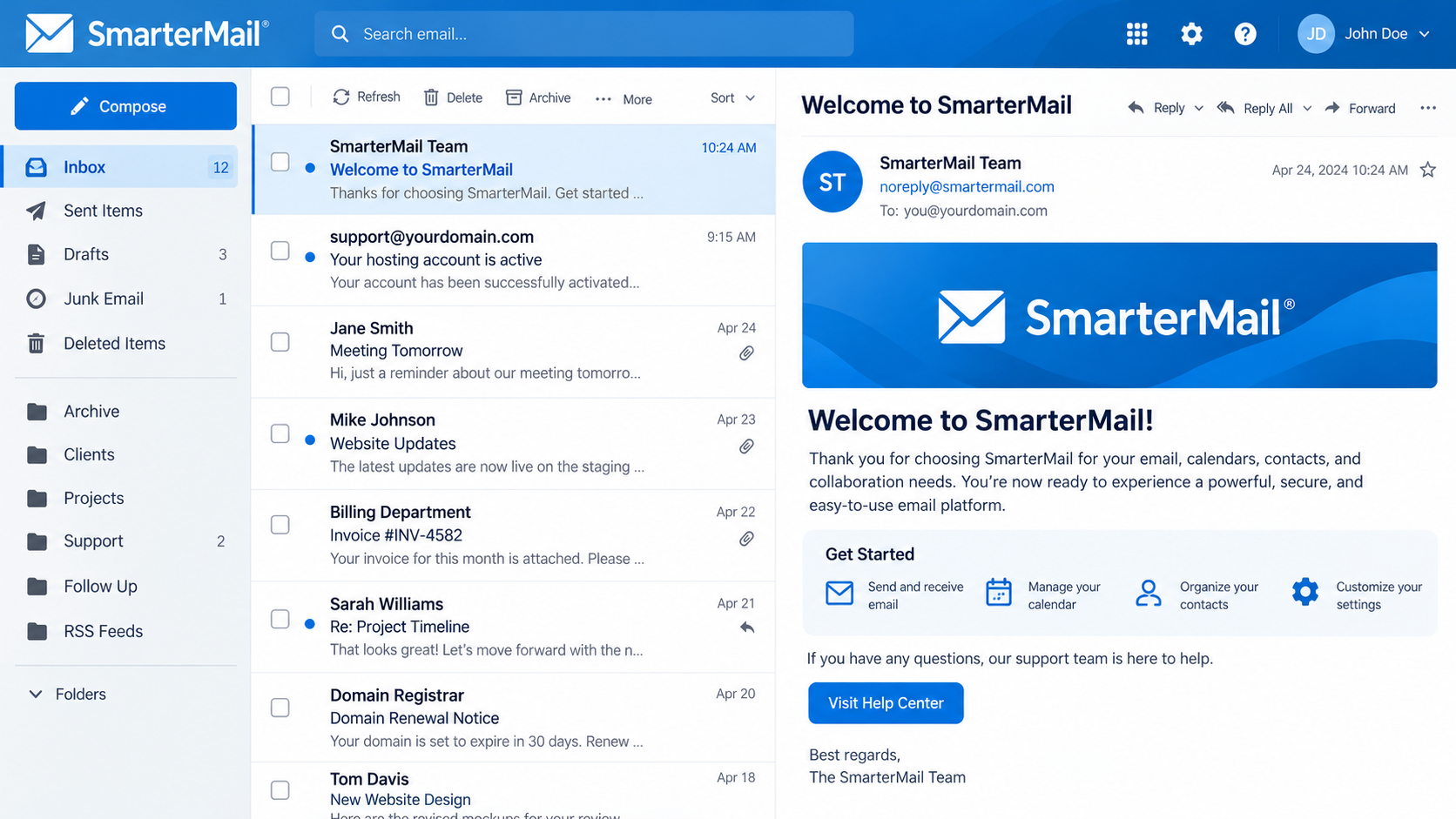
  4. Once signed in, open the Mail area to view your inbox and folders. The layout can vary by SmarterMail version and administrator settings.
Can't find the sign-in address? Check your welcome email or contact your email administrator. Do not assume every domain uses the same webmail URL.
SmarterMail sign-in pageEnlarge image ↗
SmarterMail inboxEnlarge image ↗
Step 2

Send, receive and reply to email.

The Mail area is where you read messages, compose new email, reply to colleagues, and manage conversations.

  1. Read a message: Select a message in your inbox to open it in the reading pane or message view.
  2. Compose: Choose the New Message or Compose control.
  3. Address it: Enter the recipient in To. Use CC for people who should receive a visible copy, and BCC when recipients should not see one another.
  4. Write and send: Add a clear subject, write your message, review the recipients, then select Send.
  5. Reply or forward: Open a message and choose Reply, Reply All, or Forward as appropriate.
Before sending: Check the recipient list, especially when using Reply All, and confirm that any attachment is the correct file.
Step 3

Keep your inbox organized.

Use folders, search, flags and message actions to make important conversations easier to find.

A

Create folders

Use folders to separate projects, customers, invoices or internal messages.

  • Find the folder controls in the Mail navigation area.
  • Choose the option to create a folder, give it a clear name, and save.
  • Move messages into the folder when needed.
B

Search for messages

Use the search field to locate messages without manually browsing every folder.

  • Search for a sender, subject phrase or keyword.
  • If available, narrow results by folder, date or other filters.
  • Try a shorter search term if the first search returns no results.
C

Use message actions

Actions such as archive, move, delete, mark read/unread or flag help maintain a manageable inbox.

  • Archive messages you want to keep but no longer need in the inbox.
  • Flag messages that require follow-up, if flags are enabled.
D

Manage attachments

Open a message and look for the attachment area to preview or download files.

  • Confirm the sender and expected file before opening an attachment.
  • Save downloaded files to an appropriate, secure location.
  • For large files, use an approved file-sharing method if email limits apply.
E

Use signatures

A signature can automatically add your name, role, phone number or business details to outgoing email.

  • Open Settings and look for the signature or compose settings.
  • Create or edit the signature, then save your changes.
  • Send a test message to confirm how it appears.
F

Set an out-of-office reply

When supported and enabled, an autoresponder can tell senders that you are away.

  • Look in Settings for autoresponder or vacation-message options.
  • Set the message and date range if those controls are available.
  • Check your organization's policy before including alternate contact details.
Step 4 · Productivity tools

Explore more than email.

Depending on your SmarterMail version, account permissions and administrator configuration, additional tools may be available in the interface.

01

Calendar

Use the calendar to review your schedule and create events or appointments when the feature is enabled.

  • Open Calendar from the navigation menu.
  • Select a date and choose the option to create an event.
  • Add a title, time, details and invitees if supported, then save.
02

Contacts

Store frequently used contact information so you can find people and address messages more efficiently.

  • Open Contacts or the address book.
  • Add a contact's name and email address.
  • Use your contacts when composing messages if available.
03

Tasks and notes

Some configurations include task or note tools for keeping track of follow-ups and information.

  • Check the navigation menu for Tasks or Notes.
  • Create a concise title and useful details.
  • Do not store passwords or other sensitive secrets in notes.
04

Rules and filtering

Mail rules can help automatically sort or handle incoming messages when available.

  • Open Settings and look for Mail Rules or Filtering.
  • Choose a condition, such as sender or subject, and the action to take.
  • Start with a simple rule and test it before adding more.
05

Webmail settings

Personal settings may include display preferences, compose options, signatures and password controls.

  • Open the Settings area, often represented by a gear icon.
  • Review one setting at a time and save changes.
  • Some account or security settings may require administrator assistance.
06

Mobile and desktop access

You may be able to access mail from a phone, tablet or desktop mail app, depending on your account configuration.

  • Use the official webmail address in your mobile browser.
  • For a mail app, get the correct server and connection settings from your provider.
  • Use encrypted connection settings supplied by your administrator.
Feature availability: SmarterMail features, labels and menus vary by version, licensing, account permissions and provider configuration. If you do not see a feature described here, it may be disabled or unavailable for your account.
Step 5 · Mobile setup

Set up business email on your iPhone or Android.

For the simplest setup, open your provider's SmarterMail webmail address in your phone browser and sign in. You can also add the mailbox to your phone's email app if your provider has IMAP/SMTP access enabled.

iPhone Mail app

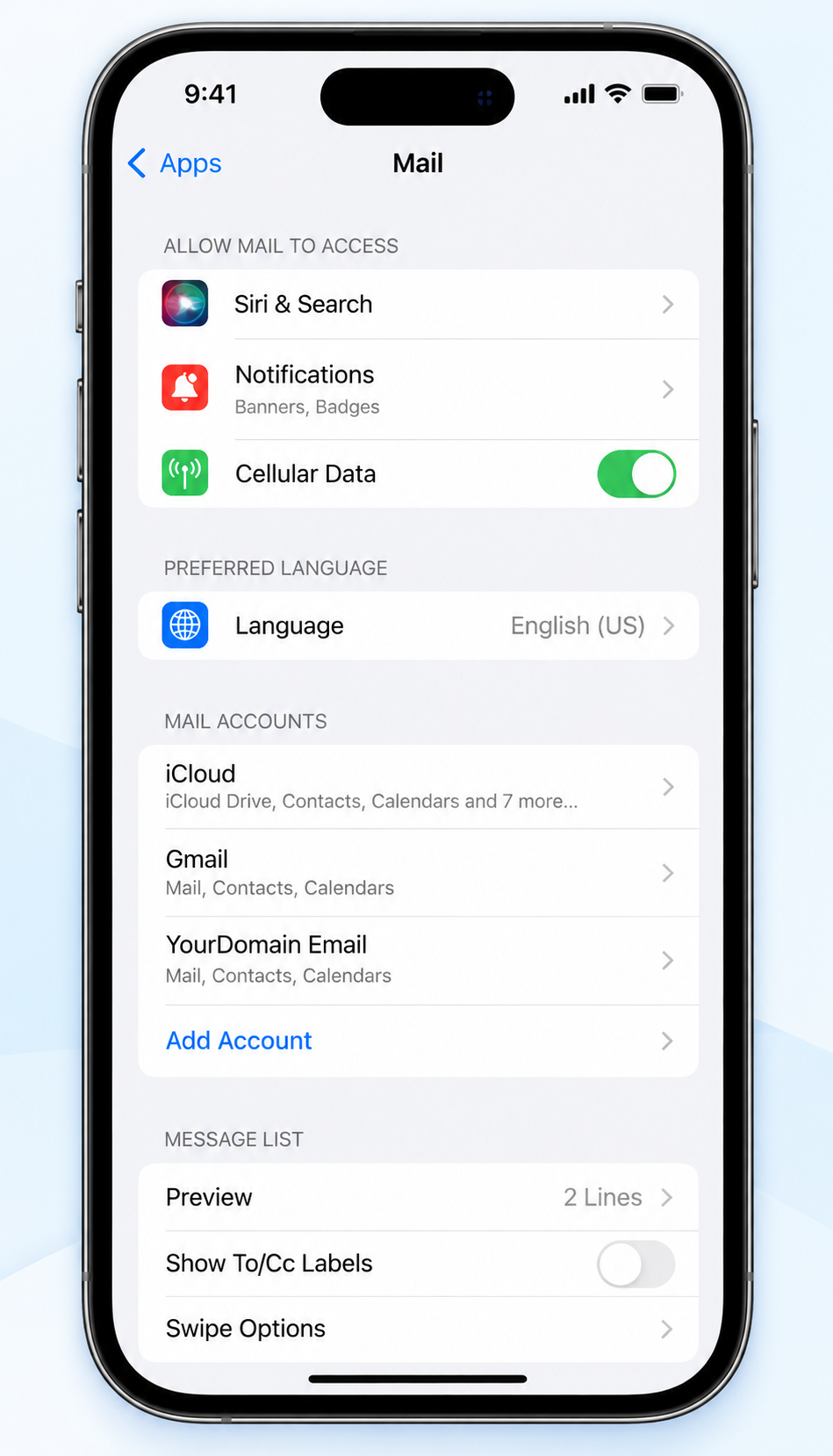
  1. Open Settings and find Apps → Mail → Mail Accounts or Mail → Accounts, depending on your iOS version.
  2. Choose Add Account. If your provider is not listed, choose Other, then Add Mail Account.
  3. Enter your name, full email address, password and a description such as “Work Email”.
  4. If manual configuration is requested, select IMAP where supported and enter the incoming and outgoing server details from your provider.
  5. Save, then send a test email and confirm that a reply arrives.
iPhone email account setupEnlarge image ↗
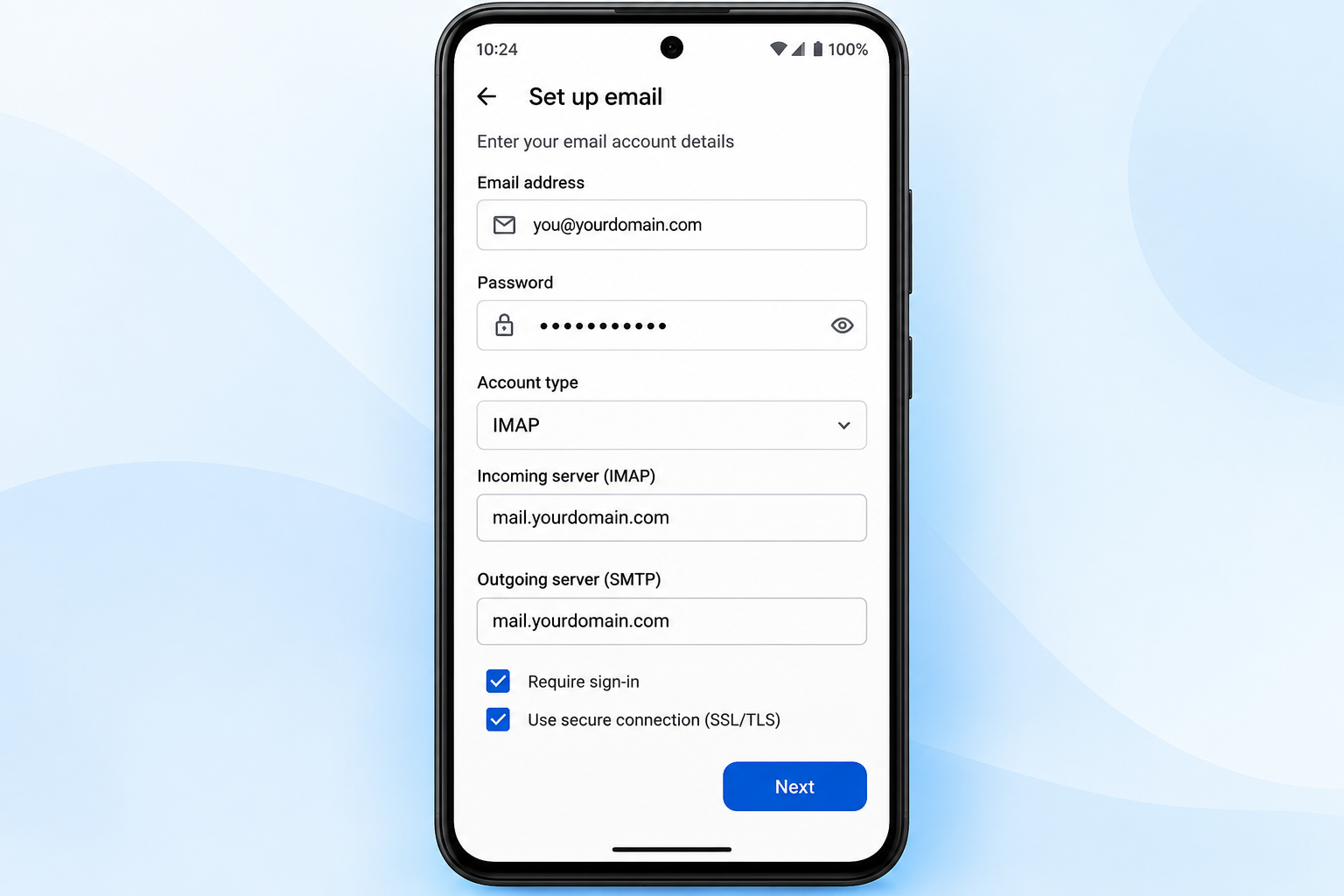
Android email setupEnlarge image ↗

Android email app

  1. Open Gmail or your preferred email app.
  2. Open the account menu or Settings, choose Add account, then select Other or manual setup if available.
  3. Enter your full business email address and follow the prompts. Choose IMAP if your provider recommends it.
  4. Enter the incoming and outgoing server names, ports, username and encryption settings supplied by your email administrator.
  5. Finish setup and test both sending and receiving.
Do not guess server settings. Server names, ports and security requirements vary by hosting configuration. Request the approved settings from your provider. Never disable encryption to bypass an error.
Step 6 · Desktop email

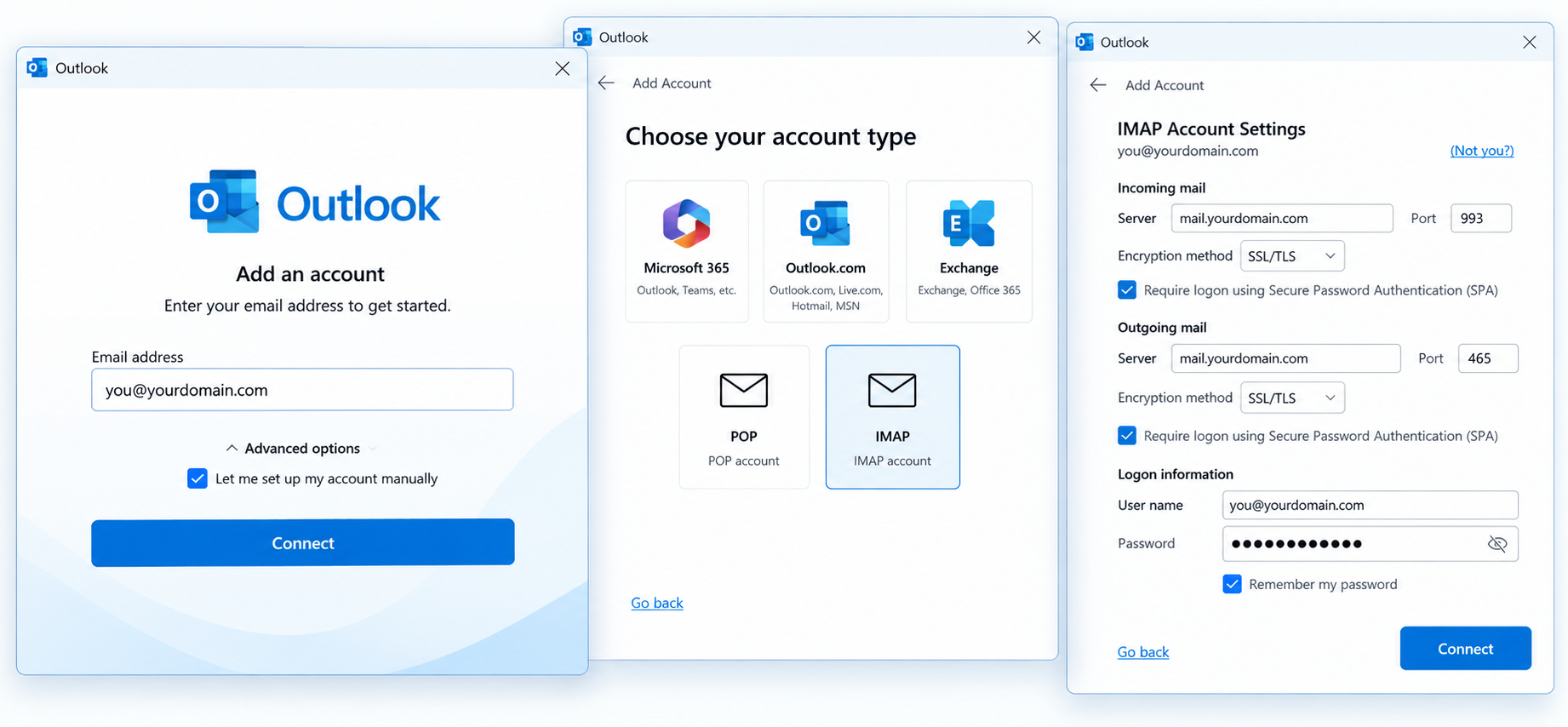
Add your business email to Outlook.

The setup steps vary by Outlook version and by which protocols your provider has enabled.

  1. Open Outlook and choose Add Account from account settings or the File menu, depending on your version.
  2. Enter your full business email address. If automatic setup fails, look for an advanced or manual setup option.
  3. Choose IMAP if your provider supports it and you want messages synchronized across devices.
  4. Enter the incoming and outgoing server names, ports, username and encryption settings supplied by your administrator.
  5. Complete setup, send a test message and confirm that a reply arrives.
Need connection details? Ask your provider for the incoming/outgoing server names, supported ports, encryption requirements and whether IMAP/SMTP access is enabled. Confirm the username format rather than assuming it.
Outlook account setupEnlarge image ↗
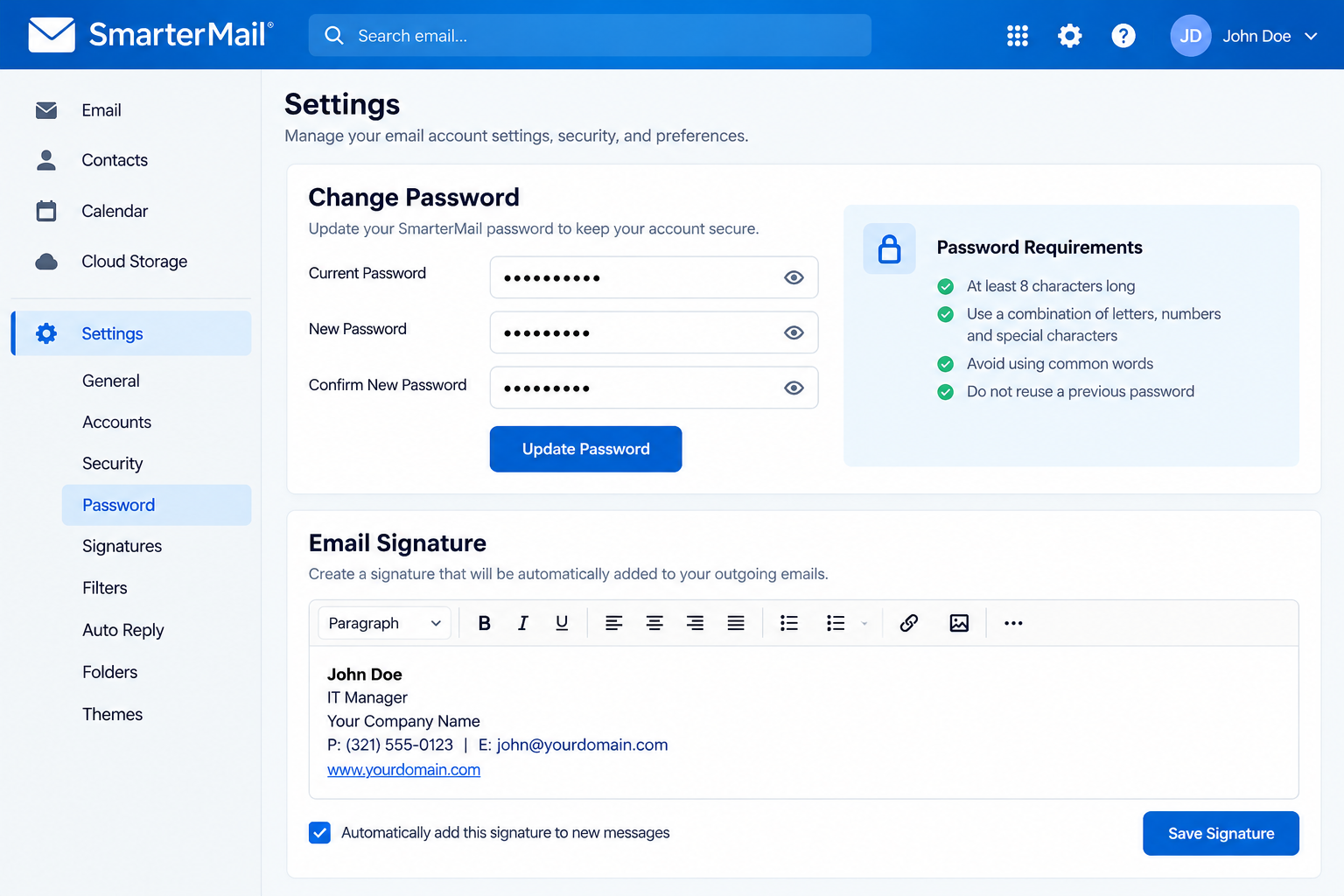
SmarterMail settingsEnlarge image ↗
Step 7 · Personal settings

Change your password and set an email signature.

Change your email password

  1. Sign in to SmarterMail through your organization's webmail address.
  2. Open Settings and look for account, profile or password settings. Labels vary by version and permissions.
  3. If available, enter your current password and choose a strong, unique replacement that meets the displayed requirements.
  4. Save the change and update the saved password in Outlook, your phone and other connected mail apps.
Can't change it yourself? Your organization may require an administrator to reset mailbox passwords. Never send your password to support staff.

Create an email signature

  1. Open SmarterMail Settings and find signature or compose settings.
  2. Create a signature with your name, role, company and business contact details.
  3. Set it as the default for new messages and/or replies if those options are available.
  4. Save and send a test email to check links, spacing and mobile display.
Step 8 · Account protection

Use email securely.

Your mailbox can contain private business information. These habits help reduce the risk of account compromise and accidental disclosure.

Recommended habits

  • Use a long, unique password that you do not reuse on other websites.
  • Enable multi-factor authentication if your organization provides it.
  • Check the full sender address and be cautious with unexpected links or attachments.
  • Verify unusual payment or password requests through a separate trusted channel.
  • Sign out on shared computers and avoid saving credentials on public devices.
  • Contact your administrator promptly if you suspect unauthorized access.
  • Report suspicious messages using your organization’s approved process.

Avoid these mistakes

  • Do not share your password by email or chat.
  • Do not open unexpected attachments just because they appear to come from a familiar name.
  • Do not send confidential information to a recipient until you verify the address.
  • Do not ignore repeated login alerts or unexpected sent messages.
  • Do not change server or security settings based on unverified instructions.
  • Do not assume an email is genuine based only on its display name or logo.
  • Never provide passwords, verification codes or payment details in response to unexpected email.
Quick reference

SmarterMail terms to know.

InboxThe folder where new incoming messages typically appear.
Sent ItemsA folder that stores copies of messages you have sent, depending on your configuration.
CC and BCCCC recipients are visible to other recipients. BCC recipients are hidden from other recipients.
FolderA way to group messages by project, person, subject or workflow.
Mail ruleA condition-based action that can automatically sort or process incoming messages when configured.
WebmailEmail accessed through a browser rather than a separate desktop or mobile mail application.
Before you finish

A quick checklist for getting started.

Use this checklist after signing in to confirm the essentials are in place.

Step 9 · Troubleshooting

Having trouble with SmarterMail?

Try these basic checks first. If the issue continues, your email administrator or hosting provider can verify account and server settings.

Contact Support ↗
Email won't send. What should I check?

Confirm the recipient address, check for a bounce-back or error message, and try a short test message without attachments. If using Outlook or a phone app, verify the outgoing SMTP settings with your provider and check whether your password changed. Do not guess ports or disable encryption. If the issue continues, give support the exact error and time it occurred.

I'm not receiving emails.

Check Junk/Spam, other folders and any rules that may move messages. Confirm the sender has the correct address and ask whether they received a delivery failure notice. If multiple senders are affected or the mailbox may be full, contact your provider to check delivery and storage limits.

How can I recognize phishing or a fake email?

Watch for unexpected urgency, requests for passwords or payment, unfamiliar attachments and links that do not match the claimed sender. Inspect the full sender address and verify unusual requests using a known phone number or trusted channel. Do not reply with sensitive information. Report suspicious messages using your organization's process.

My phone or Outlook stopped syncing after a password change.

Update the saved password in the mail app. If connection problems continue, confirm the correct server names, ports and encryption settings with your provider before removing and re-adding the account.

I can't sign in. What should I check?

Confirm that you are using the correct webmail URL and full email address. Check that Caps Lock is off, then try the password reset process provided by your organization. If the account is locked or the password reset fails, contact your administrator.

Why aren't new messages arriving?

Check Junk or Spam, confirm that your mailbox is not over its storage limit if that information is shown, and verify that you are checking the correct account. If messages from multiple senders are missing, contact your email provider to check delivery and server status.

Why can't I send an email?

Check that the recipient address is correct, remove oversized attachments, and look for any error message. If the message remains in Outbox or sending repeatedly fails, share the exact error with your administrator rather than changing server settings yourself.

How do I reset my password?

Use the password-reset link if your sign-in page provides one. Some organizations require an administrator to reset mailbox passwords. Never send your current password to support.

Why don't I see Calendar, Contacts or Rules?

Available features depend on your SmarterMail version, account permissions and provider settings. Ask your administrator whether the feature is included and enabled for your account.

Can I use SmarterMail in Outlook or on my phone?

That depends on your provider's configuration and the protocols enabled for your mailbox. Request the correct incoming and outgoing server names, ports and encryption requirements from your administrator before configuring a mail app.

My mailbox looks different from this guide.

SmarterMail's layout and labels can change between versions and customized installations. Look for the equivalent tool in the navigation or Settings area, or ask support for instructions matched to your version.


Need help setting up or troubleshooting business email?

Titusville Websites can help with email access, account configuration and hosting-related questions.

Titusville Websites · Titusville, Florida · 321-745-1692
Request Email Support ↗